Friday, August 6, 2010
Vacation
I am in Maine and will be here all next week on vacation. I'll probably take the week off from blogging as well. I hope all of you readers are having a good summer. Hard to believe but people are talking "back to school" already.


Thursday, August 5, 2010
Power Outage
I arrived in East Boothbay tonight at 10:45 PM and found that the power was out. My son informed me that power went out around 5 PM. Our cottage was lit by candles. The power came back on at about 11:20. I write this because we have the Time Warner version of their "Triple Play", the bundle that gives us TV, High Speed Internet, and Telephone. I was reminded that the TWC Cable Modem does not have a battery built in for backup. Thus we had no telephone.
I remember back in Vermont that Comcast had an 8 hour battery built in to their Cable Modem. With that one would still be able to make phone calls (in theory a least) with a phone attached to the modem, but I don't think I ever tested that out. Also, I never gave any thought to what kind of phone would work, if any. I guess maybe one of the old handsets. If true it might be a good idea to keep one of them around.
I mention this just as food for thought for all of you. If you are converting to one of the bundles, ask about backup and what else you would have to do to maintain telephone capability in the event of a power failure. I guess a PC directly attached via Cat 5 cable to the modem would work as long as the PC was a laptop running on its own battery.
A simple answer for most of you may be your cell phone, but I always manage to choose places to live that have no cell service available!
Wednesday, August 4, 2010
Tuning your system with the System Configuration Utility (MSCONFIG)
When I wrote up the accompanying document for this post, it was written for Windows XP. However, if you have Vista or Windows 7 you too will find this guide easy to follow and use. If something seems amiss it might be because you are using Vista or W7, but for the most part I think you'll find this guide something you can follow. One big change is that the referenced web site, Castlecops, is no longer available. If you do a Google search for STARTUP PROGRAMS you will find several other good web sites that will serve you well. Here is one: http://www.bleepingcomputer.com/startups/
The System Configuration Utility, an easy to use program in Windows, will take you one step closer to having a well-tuned Windows system. I use it every time I visit a customer's home or office as a part of my system tune-up process.
The System Configuration Utility, an easy to use program in Windows, will take you one step closer to having a well-tuned Windows system. I use it every time I visit a customer's home or office as a part of my system tune-up process.
Tuesday, August 3, 2010
Cleaning & Tuning
Today was a good day for me. I found enough time to clean and tune my own (primary) machine! Rarely do I get such a luxury. I rely on my recommended security suite (http://pcdocsblog.blogspot.com/2010/02/please-take-heed-and-secure-your-system.html) to keep my machines safe from rogues and viruses and other malware, and they do a great job. Once a week I try to do a full scan with either Malwarebytes or SuperAntispyware. My MSE antivirus runs every night - a full scan - while I sleep.
But after some time has gone by it is always a good idea to do a focused and thorough cleaning and tuning, and today I did just that. I also reorganized my recent photos. It turns out that I had taken many hundreds of photos during July, so I created some sub-folders to further define the July photos.
Many of you have asked me about how to organize your photos. Here is what my photo library looks like (click on it for larger view):

If you want to know a program you can use to organize your photos, I'd recommend Picasa, but I do mine manually. I like being in control and programs like Picasa and others take that away from you. In those 10 years of photo folders I have 33,495 digital photos, mostly of family, and of course, these are all precious to me, so I back them up regularly. Like most other PC things, I do that myself too.
One thing I don't get to do each week is to run some of the utility programs within Tune-Up Utilities. I freed up disk space, I cleaned the registry, I defragged the registry, checked for broken shortcuts (there were none), ran CCleaner, and did general housekeeping tasks. I feel a lot better having a clean machine that I know is running at its optimum.
As you all know, I am available to perform this service for you if needed, but I take a lot of pride and get great satisfaction knowing that so many of you, who have been following me for years, can do the same for yourselves. It's very comforing knowing what you are doing, right?
Friday, July 30, 2010
Oh Brother!
What clever and devious people do in their spare time!
Hard to believe we have yet another rogue program.
Thursday, July 29, 2010
Bharath's Security Blog
A couple of new rogue programs to watch out for. There is no rest for the weary, although it was over a month since Bharath published the last new rogue. Be careful ou there. They are out to get you!
Wednesday, July 28, 2010
Browser Choice
I was looking at Kim Komando's web site (http://www.komando.com/) this morning, as I do every day, and happened upon this tidbit:
"Microsoft's Internet Explorer is rife with security holes. Over the years, many of these security problems have been patched through Windows updates. But new ones continue to appear. I recommend that you switch to the Firefox browser. It's free. I think it is inherently safer."
I happen to agree. I have encouraged all of you to use Firefox as your default browser. You can't get rid of Internet Explorer, but you can avoid using it. There are lots of browsers out there, and they are all free, but I personally have tried them all, like Firefox best, and recommend it for your use. You can download it at http://www.mozilla.com/en-US/.
Tuesday, July 27, 2010
Baby Moose
Okay, we've all seen a moose or two on more than one occasion, but this video is quite remarkable IMHO. Even if you have seen it you might enjoy viewing it again.
The home page of the web site http://www.wimp.com/ claims "Best videos on the Web. Suitable for all ages." I have watched quite a few and there is sure to be something for all ages. Lots of fun.
Monday, July 26, 2010
Making Windows XP Last for Another 4 Years
This is an oldie but goodie that I first posted in 2008, and at that time the post was titled Making Windows XP Last for Another 6 Years! Note that the title has been changed to 4 years!!
I have come to use my desktop, referenced in the original post, much less these days. As a matter of fact since we moved I have not unpacked it. I have become quite happy using a laptop. I have 2 Acers, and one runs Windows XP and the other, my new primary machine, runs Windows 7.
If you have Windows XP, whether a desktop or laptop, and want to continue using it for some time, you are in good company and can plan on using it for another 4 years if you keep it updated and follow my recommended security suite of free programs. One note I would make is that I did upgrade the RAM from 1GB to 2GB, and I would urge you to do the same if your machine has that capacity.
Monday, July 19, 2010
Using the HOSTS file to block certain web sites
The oft-discussed HOSTS file is nothing more than a list of web sites that will be blocked if you try to get to them. If you use the recommended MVPS HOSTS file, the list of web sites contains web addresses of sites that have been known to cause trouble.
Suppose you have someone in your house who is visiting a web site that you'd like to block? If that is the case, you can manually add the site, or sites as the case may be, to your HOSTS file.
Here is how to do it. In order to follow these instructions you need to have view access to hidden and system files. To gain this access you can go into Windows Explorer, Tools/Folder Options/View. Once there, uncheck the boxes that prevent you from viewing these files.
Now that you can view hidden and system files, go to this location, C:\Windows\System32\drivers\etc. Once there you will see the HOSTS file. In XP, right click on the filename, select Open With, and then select Notepad.

Once the file is opened, you can simply insert a blank line anywhere you like, and either paste the web site you wish to block or key it in manually. Then SAVE the file. Voila, the offensive web site is now blocked on your system (after the next reboot). I would suggest you take note of the sites you add, and keep them all together like starting maybe at line 100, because remember this file will become the OLD file next month with the latest update and you will have to copy them all into the new HOSTS file.
Write me if you need help with this.
Friday, July 16, 2010
Checking the health of your hard drive
An oldie but goodie, running Chkdsk (Check Disk). This is worth doing once every 6 months or when required. Complete detailed instructions are included.
Thursday, July 15, 2010
Spybot's Immunize function and the new MVPS HOSTS file
I have known for a long time that Spybot's Immunize function adds a considerable amount of data to the end of the HOSTS file which, in my case is the MVPS HOSTS file. I remember having an e-mail discussion with the author of the MVPS HOSTS file and telling him this. At the time he was not aware of this, and so we agreed I would send him supporting data (before and after Spybot's run HOSTS files). It is quite clear what Spybot's Immunize does (at least in this regard) when one takes a look at the before and after HOSTS files.
What am I talking about you may ask?
What I am getting at is that the author of the MVPS HOSTS file was not, at that time, impressed by what Spybot did, and he seemed to say it was a waste, most likely redundant data added to the end- I forget. In any case, I am doing something new now because of this.
This morning I noticed that the new July version of the MVPS HOSTS file was available. I took a look at my current HOSTS file (the June version) and it was, best I can recall, 597KB in size. I then ran Spybot (update, immunize, and sarch & destroy). My HOSTS file went from 597KB to nearly 1MB, a substantial increase. FYI, the entire HOSTS file is loaded into memory at boot time, so this is a substantial increase which buys one little or nothing.
My new approach is this. When the new monthly MVPS HOSTS file is made available, I will first do a full Spybot run and THEN install the new MVPS HOSTS file. I will thus wind up with a HOSTS file in size of about 600KB vs. one of about 1MB, knowing the larger version would do me little or no good. Capiche? If not, please ask.
HOSTS News (worth bookmarking)
Wednesday, July 14, 2010
Microsoft Windows Malicious Software Removal Tool
I had 5 updates from Microsoft yesterday. You'll all have differing numbers, bu mine was 5. One of these was the monthly MS Malicious Software Removal Tool ( I call it MSRT for obvious reasons). I promised last month that I'd follow up with someI better information about this tool. This is what I found:
Microsoft will only run a Quick Scan with the tool after it is downloaded and installed. This is as I had thought and is why I have always recommended that we all manually run a Full Scan. MS will run a quick scan in stealth mode. You'll never know when it is running and you won't see any output from the tool - unless it finds a problem.
The first thing you should do once you have checked your updates (Check the update history to see if it was installed this week) is to run a Full Scan. There is a quick and easy way to do this, much simpler than the method I have posted in the past. First click on START, then RUN, and enter MRT (go figure why they left out the S) in the command line then click on OK.

Yes, you can click on that picture above to see the larger version.
In the resulting window note the month in the application banner at the top of the window.
 In this case it says July 2010, and yours should as well. Click on Next and then select Full Scan. Just let it run. It takes forever but should not impact your use of your machine. It seems to have very low overhead.
As I post this, mine has been running for over 2.5 hours and it may run a lot longer. I don't care because it is very cheap insurance. Go for it!
Microsoft will only run a Quick Scan with the tool after it is downloaded and installed. This is as I had thought and is why I have always recommended that we all manually run a Full Scan. MS will run a quick scan in stealth mode. You'll never know when it is running and you won't see any output from the tool - unless it finds a problem.
The first thing you should do once you have checked your updates (Check the update history to see if it was installed this week) is to run a Full Scan. There is a quick and easy way to do this, much simpler than the method I have posted in the past. First click on START, then RUN, and enter MRT (go figure why they left out the S) in the command line then click on OK.

Yes, you can click on that picture above to see the larger version.
In the resulting window note the month in the application banner at the top of the window.

As I post this, mine has been running for over 2.5 hours and it may run a lot longer. I don't care because it is very cheap insurance. Go for it!
Tuesday, July 13, 2010
Summer Doldrums
Doldrums definition: a state or period of inactivity, stagnation, or slump. Things have been busy and I am having trouble trying to post to this blog on a daily basis.
So, instead of being totally idle, I will from time to time provide links to some oldies but goodies. I had a customer tell me recently that she forgot how to defragment her hard drive. It's important that you do this regularly, like maybe every 3 months or so. At this link you will find detailed instructions on how to do this. Do it even if the Analyze step says you don't need to do it.
So, instead of being totally idle, I will from time to time provide links to some oldies but goodies. I had a customer tell me recently that she forgot how to defragment her hard drive. It's important that you do this regularly, like maybe every 3 months or so. At this link you will find detailed instructions on how to do this. Do it even if the Analyze step says you don't need to do it.
Friday, July 9, 2010
New Laptop From Toshiba Is Lightweight and Speedy
From the Wall Street Journal's Walt Mossberg, comes a review of a new Toshiba laptop. I thought this strange that he should review one laptop like this, but if you are looking for a new laptop, here is another one to consider. It ain't cheap.
Thursday, July 8, 2010
How to Buy a Desktop PC
For those of you who prefer desktop computing, here is a very good article from pcmag.com.
"When buying a Desktop PC, you still need to make some choices when it comes to CPUs, memory, hard drive capacity and graphics technology. The good news is your money has never gone further.
Does your PC take so long to start up you have time to go get a cup of coffee-and drink it? Tried installing the latest game only to find out your graphics card is six generations too old to play it? Or maybe you just want to take advantage of the speed and reliability of operating systems like Microsoft Windows 7 and Snow Leopard. If any of these are true, then it is time for you to buy a new desktop PC. And we can help you do it."
Friday, July 2, 2010
Happy 4th
Happy 4th of July holiday weekend everyone. I am so grateful to be an American. I look forward to a nice long weekend with family and friends. I wish the same for you.


Thursday, July 1, 2010
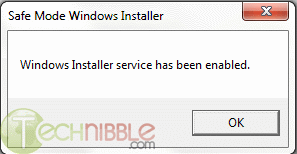
SafeMSI.exe – Start Windows Installer Service in Safe Mode
I have been frustrated many times over when working on a customer's machine in Safe Mode, which I do all the time, because one is not able to uninstall or install programs in Safe Mode. Basically the Microsoft Windows Installer program is not loaded in Safe Mode and is not usable.
This tiny program purports to make a registry change making the Installer program a Safe Mode program, meaning it is usable in Safe Mode, meaning one can uninstall, and presumably install, programs while in Safe Mode.
Note the part that says this program should be started up WHILE IN Safe Mode, not beforehand. That's a gotcha if you don't pay attention to this.
This is meant for those of you at a rather advanced level. For me, what I will do is carry the program on a flash dive at all times, and after having booted a customer's machine in Safe Mode, I will run the program from the flash drive.
I have not tried this yet, but I think it's worth a try if you are having issues that are better solved in Safe Mode.
The following comes from technibble.com:
SafeMSI.exe is a tiny, portable, freeware application designed to let you uninstall programs in safe mode. When the computer is in safe mode, the Windows Installer service isn’t started so most programs can’t be uninstalled. Since technicians do a lot of work in safe mode and being unable to uninstall is a huge bother. It is also not possible to start the service manually, an error message will come up saying “Could not start the Windows Installer service on Local Computer. Error 1084: This service cannot be started in Safe Mode”. This tool will do a registry tweak so that Windows Installer is made a safe service and it will launch the Windows Installer service. The tool is meant to be used after you are already in safe mode, it is a tiny .exe that just needs to be double-clicked or run and it runs very quickly.
The website mentions that the tool is compatible with Windows NT, 2000, XP and Server 2000. Although it doesn’t mention it, it is also compatible with newer versions including Windows 7.
Screenshots:
This tiny program purports to make a registry change making the Installer program a Safe Mode program, meaning it is usable in Safe Mode, meaning one can uninstall, and presumably install, programs while in Safe Mode.
Note the part that says this program should be started up WHILE IN Safe Mode, not beforehand. That's a gotcha if you don't pay attention to this.
This is meant for those of you at a rather advanced level. For me, what I will do is carry the program on a flash dive at all times, and after having booted a customer's machine in Safe Mode, I will run the program from the flash drive.
I have not tried this yet, but I think it's worth a try if you are having issues that are better solved in Safe Mode.
The following comes from technibble.com:
SafeMSI.exe is a tiny, portable, freeware application designed to let you uninstall programs in safe mode. When the computer is in safe mode, the Windows Installer service isn’t started so most programs can’t be uninstalled. Since technicians do a lot of work in safe mode and being unable to uninstall is a huge bother. It is also not possible to start the service manually, an error message will come up saying “Could not start the Windows Installer service on Local Computer. Error 1084: This service cannot be started in Safe Mode”. This tool will do a registry tweak so that Windows Installer is made a safe service and it will launch the Windows Installer service. The tool is meant to be used after you are already in safe mode, it is a tiny .exe that just needs to be double-clicked or run and it runs very quickly.
The website mentions that the tool is compatible with Windows NT, 2000, XP and Server 2000. Although it doesn’t mention it, it is also compatible with newer versions including Windows 7.
Screenshots:
Wednesday, June 30, 2010
Leaving Jericho
My dear Vermont customers and friends,
The time has come for me to bid you and our beautiful State of Vermont farewell. Family calls. I have told many of you of our frequent trips to Boston to be with our grandkids. As things turned out, 3 of our 4 sons settled in the Boston area, and one of them is Dad to our only 2 grandkids. At my advanced age in this short life, it just makes sense for us to relocate to be near them and to leave our large home in Jericho, where we have lived for 30 years, 4 months, and one day. We moved today. We are happy to report that a young family with 2 young sons will replace us at 38.
I have come to know, admire, respect, and even call friends so many of you. Thank you, thank you, thank you, not just for your business, but the quality time you spent with me, allowing this stranger to enter your lives. I sincerely appreciate that, and I will miss you all.
As for the health of your home computers, please continue to read my blog. I will do my darnedest to continue to provide quality information that will help you keep your computers running smoothly and incident-free. Remember that I can still provide remote assistance as long as you are able to connect to the internet. This can serve you in a pinch, but frankly, it's just not the same as being able to visit you in your homes or mine and to have the face-to-face encounters I have so much enjoyed.
As I have told some of you, I cannot recommend any single individual to replace me who lives in the Jericho-Underhill area, simply because I don't know my local competition at all, if there even is any. What I will do is this: if any of you has had a successful relationship with anyone else from the area who has helped you when you were in a jam with your PC, please tell me who that was, and I will compile a list and send it out to all of you. Fair enough?
Also, if any of you would like to leave me some words of farewell, I would love to hear from you, so please write.
I wish you all well, safe and secure computing, and happiness and good health, and once again,
THANK YOU FOR YOUR BUSINESS!
Tom
Tuesday, June 29, 2010
iPhone 4 Review
There is a really good and complete, I believe, review of Apple's new iPhone 4 on Maximum PC today. I have scanned most of it (not really interested in it myself) and it appears to be a high quality review. If interested in this new much-more-than-a-phone from Apple. check out this review:
Subscribe to:
Posts (Atom)